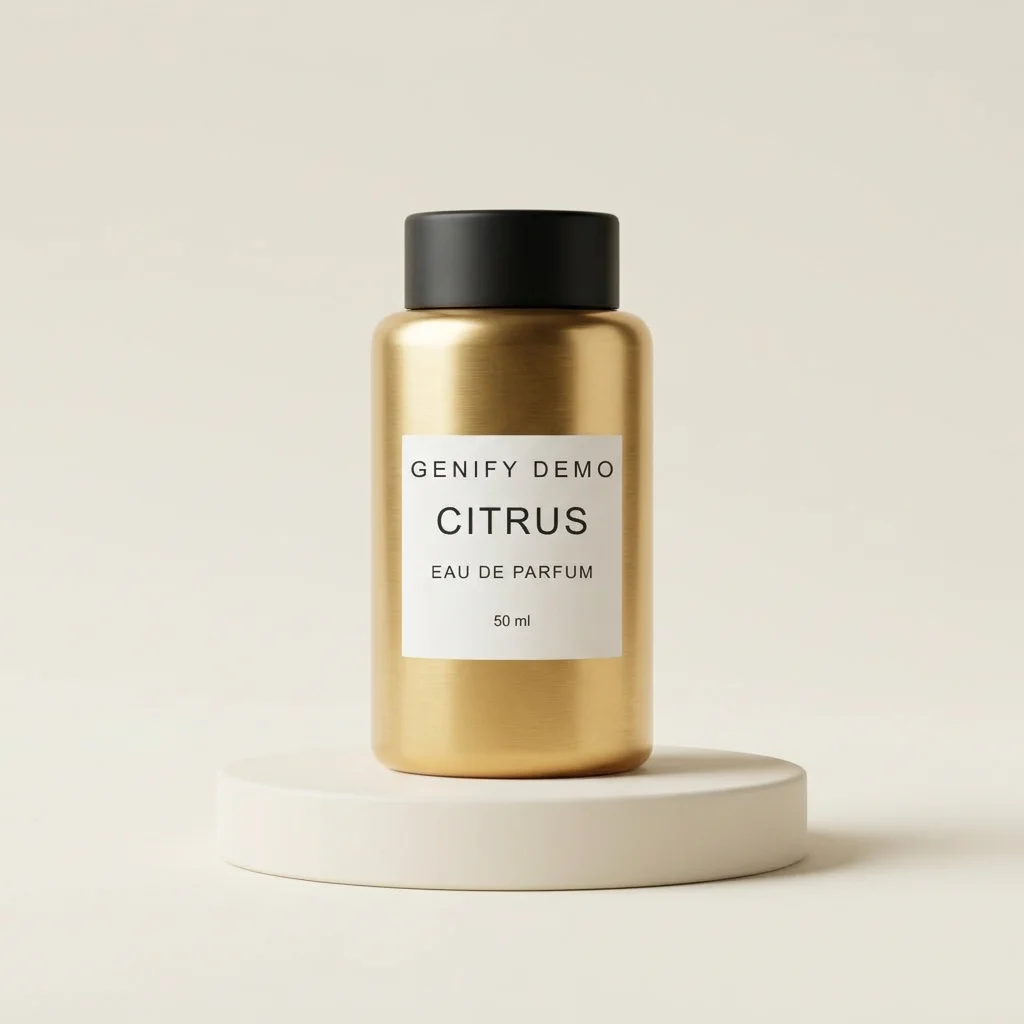
Genify’s Image to Prompt Generator is an AI tool that converts a reference image into an editable text prompt for image generation.
To turn an image into a prompt, upload a JPG, PNG, or WebP file. Choose Describe Image to capture the subject and scene, or Extract Style to reuse the reference’s lighting and composition with a different subject. You can edit the result, copy it, or open it in Genify’s image generator.
2. Get Your Prompt
0 / 5000
One Reference Image, Two Ways to Create a Prompt
Upload a reference image and choose a mode. Describe Image captures the subject and setting in a prompt you can use to recreate a similar scene. Extract Style captures the lighting and composition. You can apply that look to your own product or another subject.
Compare the examples below, or select Try Example and switch modes to see the full prompts.
Describe Image
Sample prompt
Create a square studio product photograph of a brushed gold cylindrical perfume bottle with a matte black cap. Place the bottle upright at the center of a low, ivory circular plinth, with clear space above and to both sides. Use a straight-on viewpoint slightly above the plinth. Light the bottle from the upper left with a broad, soft source so the metal has a warm highlight and a gentle shadow falls to the right.
Extract Style
Sample prompt
Photograph [your product] on a low, ivory circular plinth in a square composition. Center the subject with breathing room above and on both sides, and use a straight-on viewpoint slightly above the plinth. Light from the upper left with a large, soft source to reveal the subject’s surface texture and cast a gentle shadow to the right.
Describe Image vs. Extract Style
Choose Describe Image when the subject in the reference matters. Choose Extract Style when you want to keep the visual setup and use a different subject.
Comparison point
Describe Image
Extract Style
Use it when
You want a prompt that describes the whole reference image.
You want to apply the reference’s look to another subject.
The prompt captures
The subject, framing, lighting, materials, and relevant visible details.
The composition, light direction, colors, and textures.
Subject in the output
The subject shown in the reference.
The subject you specify, or an editable placeholder.
How can I reuse a reference photo’s lighting with my own product?
Use Extract Style on the reference photo to turn its lighting and composition into a prompt. Then select Use in Image Generator, switch to Image to Image, and add a photo of your product so the generator has a visual reference for its packaging and shape.
01
Add a style reference.
Upload the photo whose lighting and framing you want to reuse.
02
Describe your product.
Choose Extract Style and enter an instruction such as “Keep the warm light and use a matte coffee pouch.”
03
Use your product photo.
Get your prompt and Use in Image Generator. Switch to Image to Image and add your product photo.
Frequently Asked Questions
Can Genify recover the original prompt from an image?
Genify writes a new prompt based on what it can see in the image. Use it as a starting point for recreating a similar scene or adapting the reference’s look.
Can I use the generated prompt in Midjourney or another image generator?
Yes. Copy the prompt into a generator that accepts text prompts and adjust the wording or settings for that tool.
Is it free to turn an image into a prompt?
Yes. Genify users get 30 free credits every day. Image to Prompt costs 5 credits per image, so you can use it up to 6 times a day for free. If you need more credits, you can buy a credit pack.
Which image formats and prompt languages are supported?
You can upload one JPG, PNG, or WebP image up to 5 MB. Currently, the Image to Prompt tool supports English and Simplified Chinese as prompt languages. We’ll add more languages based on user feedback.
What happens to the image I upload for analysis?
Genify sends the image to its safety and AI providers to process the conversion. After a successful conversion, your private history keeps a small reference thumbnail for up to 60 days. The original is available for regeneration for up to 24 hours. You can delete both with the prompt in My Works.