

How to use the Image to Video AI Generator
The Image to Video AI Generator begins with a source frame. The uploaded image establishes the subject, composition, colors, textures, and opening viewpoint, while the prompt explains what should move and how the camera should behave. You do not need to describe every visible detail again, but you should state what must remain stable and what should change over time.
Each image-to-video model can require different source material. The upload area marks required and optional images and prevents submission when a required image is missing. Depending on the model, you may see one starting image, start and end frames, reusable elements, or additional references. Review the upload fields shown after selecting a model.
- 01
Choose a strong source frame
Upload an image with a clear subject, well-defined edges, intentional composition, and enough surrounding space for the movement you plan to request. - 02
Confirm the selected model's required images
Read the labels in the image section. Add every required image and use optional end-frame, element, or reference controls only when the model exposes them. - 03
Describe motion instead of repeating the picture
State what the subject does, what changes in the environment, how the camera moves, and which details must stay consistent. - 04
Review model-specific settings
Check the visible duration, resolution, aspect, and audio controls. Some models derive framing from the source image, while others expose explicit choices. - 05
Submit and follow the task
Review the calculated credit amount, generate, and use the shared Workspace that opens after successful submission to follow progress and the completed result.
Prepare a start frame for the Image to Video AI Generator
The source frame is not just an attachment. It is the first compositional decision in the clip. A clean, intentional image gives the model a better chance to preserve subject identity and produce motion that feels connected to the scene. A cluttered or ambiguous frame can force the model to guess which object matters, where limbs or product edges begin, and how much space exists beyond the visible crop.
Preparation does not mean every image must be studio-perfect. It means the visual hierarchy should match the motion request. If the subject will walk to the right, leave space to the right. If the camera will pull back, avoid an extreme crop that gives no contextual clues. If the motion should be subtle, use a frame with stable pose and clear silhouette rather than a moment already frozen in severe blur.
Make the subject easy to identify
Use a frame where the main person, object, or illustrated character is clearly separated from the background. Overlapping limbs, reflective edges, transparent materials, or a subject cropped at multiple joints can increase ambiguity when motion begins.
Leave room for the requested direction
Composition should anticipate movement. Give a face room to turn, a vehicle room to travel, a camera room to orbit, and environmental elements room to enter or leave the frame.
Protect important design details
For products, logos, costumes, architecture, or branded layouts, identify the details that must remain stable. A simple front or three-quarter view often provides a clearer anchor than an extreme angle with heavy distortion.
Match source quality to the intended shot
Compression artifacts, tiny faces, illegible text, and motion blur can become part of the model's evidence. Use the clearest practical source and avoid expecting the animation step to repair every weakness in the original.
Write motion and camera instructions
A good image-to-video prompt focuses on temporal change. Begin with the subject action, then add environmental movement, camera behavior, pace, and stability requirements. You can mention style or mood, but those should support the motion rather than replace it. Requests such as cinematic, dynamic, or make it alive are too broad on their own because they do not identify what changes between frames.
Use restrained motion first when preservation matters. A subtle head turn, breathing movement, cloth response, drifting fog, light change, or slow camera push usually asks less of the source geometry than a full-body spin, large viewpoint jump, or rapid transformation. Once the stable version works, you can increase the amplitude in a later iteration.
Subject action
Name the moving part and the direction: the character looks left and raises one hand; the bottle remains fixed while condensation slides down; the illustrated bird opens its wings slowly. Avoid several unrelated actions competing in the same short clip.
Environmental motion
Add secondary movement that belongs to the scene: hair and fabric responding to wind, reflections shifting across a surface, leaves moving in the background, or particles drifting through light. Secondary motion should reinforce scale and atmosphere without stealing the focal point.
Camera behavior
Specify whether the camera is locked, pushes in, pulls back, tracks, pans, tilts, or makes a restrained orbit. If the source image has strong perspective, ask for a move that the visible geometry can plausibly support.
Consistency constraints
State what must not change: preserve facial features, maintain the product silhouette, keep the logo area stable, retain the same outfit, or keep the background architecture fixed. Constraints are most effective when they are few and concrete.
From a Start Frame to a Controlled Motion Study
Motion prompt
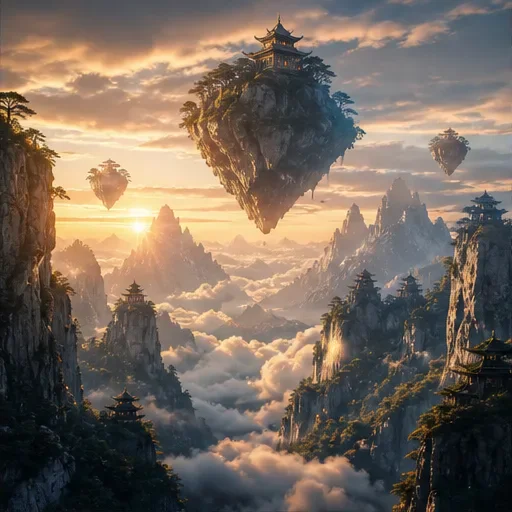
Slow cinematic camera push through the scene, natural atmospheric movement in the clouds and trees, stable mountain geometry, restrained pace, and warm sunrise light. Preserve the temple islands and the original composition.
The source establishes subject, composition, and color. The prompt focuses on environmental movement, one camera behavior, pace, and the structures that must not drift.
Start frames, end frames, and reference controls
Not every image-to-video model accepts the same inputs. A model may require one starting image, offer an optional ending image, support reusable elements, or accept additional image, video, or audio references. Genify shows only the upload fields supported by the selected model and validates their limits before submission.
An end frame is not merely a second inspiration image. When available, it expresses where the clip should arrive, so the two frames need a plausible visual relationship. A dramatic change in subject identity, viewpoint, lighting, and layout all at once can make the transition difficult to resolve. Use end frames to guide a clear progression rather than to request an entire edit sequence in one generation.
When to use only a start frame
Use one frame when the opening identity and composition matter but the ending can remain open. This gives the model room to interpret motion from your prompt and is often the clearest way to test a new animation idea.
When an end frame helps
Add an end frame when the final pose, camera position, product state, or environmental change is essential and the selected model supports one. Keep the subject and scene similar enough for a short transition to connect them naturally.
When elements or references help
Use specialized controls only for the selected model and only when they solve a real consistency problem. Labelled elements can help the prompt refer to reusable subjects, while additional reference assets can provide context. They also add complexity, so a simple task should begin with the minimum required inputs.
Use model-specific settings without fighting the image
The uploaded image and selected settings should describe the same shot. If the model derives aspect from the source, crop the image deliberately before upload. If the model exposes aspect choices, confirm that the chosen ratio supports the source composition. A portrait subject in a wide frame may need environmental space; a horizontal landscape forced into a narrow vertical layout may require a different crop or a more restrained camera request.
Duration also changes what is realistic. A short clip can show a glance, a light sweep, a small orbit, or one environmental reveal. A longer available option can support a fuller progression, but it does not make an overloaded prompt coherent. Resolution and audio controls remain model-dependent, and the visible interface is the reliable reference.
- Review the required images again after changing models, because the upload fields can change with your selection.
- Check whether aspect ratio is explicit or derived from the source. Compose and crop accordingly.
- Match the number of motion beats to the selected duration rather than asking a short clip to contain several edits.
- Use resolution choices only when they are shown for the active model; do not assume every model exposes the same output settings.
- Treat audio, elements, end frames, and reference assets as optional capabilities, not default features of every image to video AI model.
Image-to-video use cases
The Image to Video AI Generator suits projects that already have a defined subject or opening composition. It can add movement, atmosphere, and camera motion to photography, illustration, product imagery, concept art, or designed frames. The goal is usually to turn one image into a focused motion study, not to replace every stage of editing or animation.
- Portrait motion: introduce a small expression, gaze change, breath, hair movement, or camera push while preserving the person's recognizable features as much as the generation allows.
- Product animation: keep the product central while adding a light sweep, restrained orbit, mist, particles, surface reflections, or a background reveal.
- Illustration and concept art: animate weather, cloth, foliage, glowing effects, depth, or subtle character movement without redesigning the entire artwork.
- Architecture and interiors: add moving light, people at a distance, curtains, traffic, water, or a slow camera move through a prepared visualization.
- Social still-to-motion variants: turn a campaign key visual into a short hook while testing vertical and horizontal framing where the selected model supports it.
- Storyboard and presentation frames: communicate the intended pace and camera direction of a shot before a larger production decision is made.
Keep subjects and composition consistent
Consistency is a negotiation between the source image, requested motion, camera change, selected model, and clip duration. The more the viewpoint or pose departs from the evidence in the frame, the more the model must invent hidden geometry. That can be creatively useful, but it can also change faces, hands, logos, product details, or background structure.
Begin with the smallest motion that proves the concept. Once the subject remains stable, increase one dimension at a time: action amplitude, camera travel, environmental change, or duration. This staged approach creates a useful baseline and makes failures easier to diagnose.
A disciplined image to video AI workflow protects the source first, then increases motion only after the baseline remains recognizable.
Identity drift
Use a clearer source, reduce extreme head turns or camera orbits, and name the identity anchors that matter. Avoid asking for simultaneous costume, age, lighting, and viewpoint changes when recognizability is the priority.
Warped hands, edges, or product geometry
Choose a source with visible boundaries and fewer occlusions. Reduce fast limb movement, severe perspective changes, and reflections that obscure the object's shape. For products, keep the silhouette and label area explicitly stable.
Background replacement or unwanted objects
Describe the background as stable and remove broad transformation language. A locked or gentle camera can reduce the need to invent unseen space. If a reveal is important, give the source enough surrounding context.
Motion that ignores the source pose
Ask for an action that can plausibly begin from the visible pose. A seated subject can turn, lean, look, or reach before it performs a full-body action that would require unseen legs and floor space.
End-frame transition feels abrupt
When an end frame is available, make the pair more compatible. Reduce the difference in camera angle, subject scale, scene layout, or lighting, and describe the single transition that connects them.
Continue the visual workflow
- Start From A Written Scene InsteadUse text to video AI when you want the model to invent the visual starting point from the prompt.
- Compare All AI Video ModesReturn to the AI video generator hub for a direct comparison of text-first and image-first creation.
- Create Or Refine The Source FrameUse the AI image generator hub when the portrait, illustration, product image, or scene composition needs more work before animation.
- Explore Every Genify Creation ModeVisit the homepage to compare image and video generation from text and reference images.